Call your team
Call a bot and talk it through out loud. It answers in its own voice and hands the real work to its engine.
You can call any bot and just talk. It answers from its first sentence, looks things up while you talk, and hands real work to its own engine while it keeps talking to you. Calls work on Mac, Windows and Ubuntu.
Before you start
- A voice for the bot. Open Bot settings → Voice & alerts and pick a Voice engine and a Voice. See Give a bot a face, a voice and a personality.
- Flux Router, or your own keys. Flux covers every part of a call with one key. Without it, you need your own keys for the voice and the fast "voice host" model (xAI, Anthropic, OpenAI, Groq or OpenRouter). A Claude or ChatGPT subscription doesn't cover calls.
- On a Mac, allow Microphone and Speech Recognition for Murage when asked.
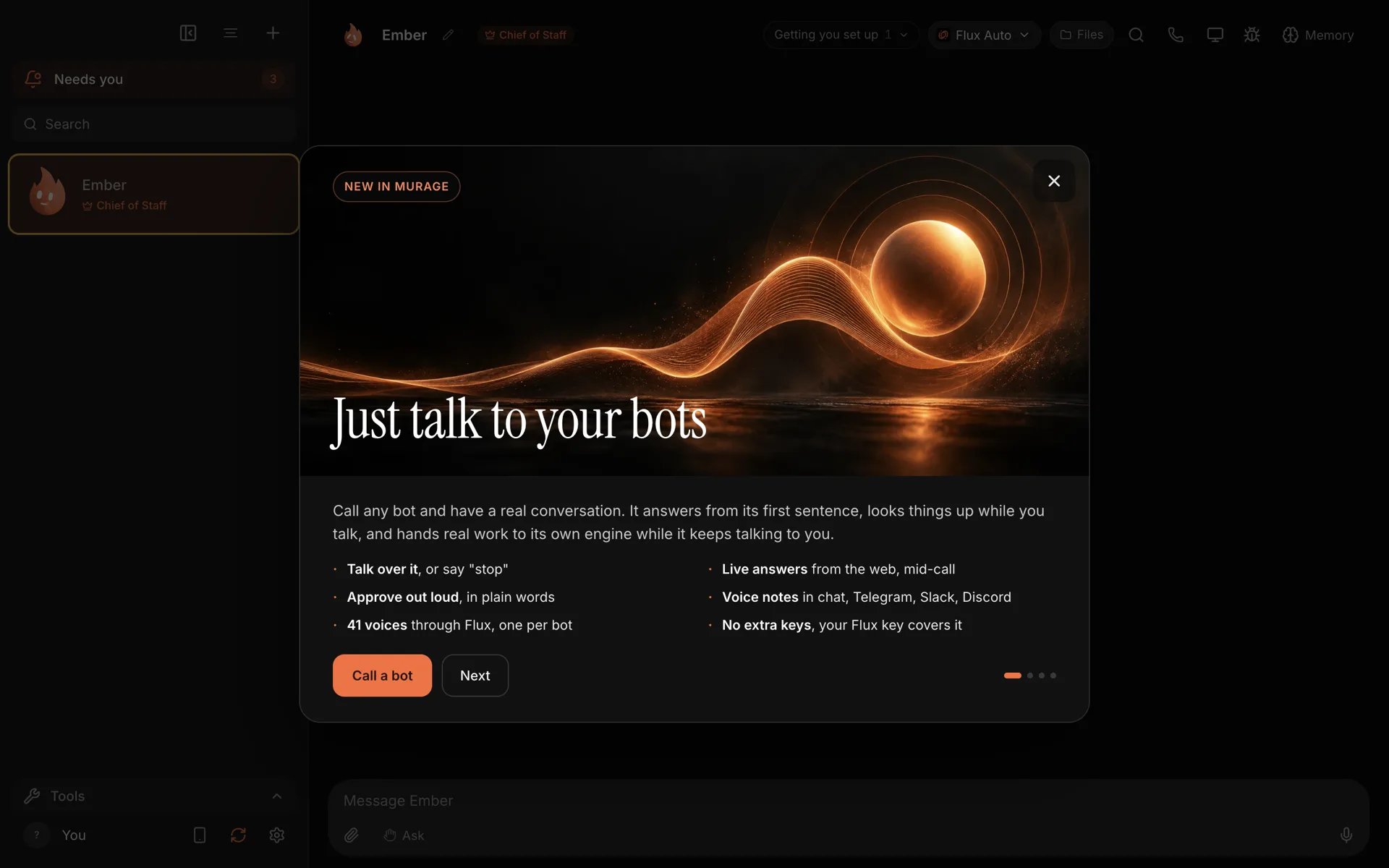
The What's new card for calls. Choose Call a bot to try it.
1. Start the call
Open the bot's chat and choose the phone button at the top of the chat. If the button shows a small dot, the call can't start yet. Choose it to see what's missing, usually a voice.
2. Talk
Just speak. The bot answers out loud.
- Talk over it to interrupt, or say "stop".
- Press Space to interrupt and Esc to hang up.
- Choose Mute to mute your microphone.
Ask it something current and it looks it up on the web mid-call. Ask it to do real work, such as "draft that email", and it hands the job to its engine while you keep talking.
On a Mac, Murage hears you as you speak. On Windows and Ubuntu it hears you about 1.5 to 3 seconds after you stop, and you won't see your words appear live.
3. Approve out loud
If the work needs your permission, the bot asks in plain words. Say yes or no. Say "yes for the rest of the call" to cover ordinary requests until you hang up. It covers ordinary requests only, not the stop line.
4. Hang up
Choose Hang up or press Esc. The bot leaves a note of the call in the chat, and any work it handed off carries on.
Call a channel
You can also call a channel of bots. Every member needs a voice first.
Voice notes
Don't want to call? Ask a bot to "send me a voice note". It replies with an audio message in its own voice, up to about 90 seconds. From your Chief of Staff, voice notes also reach you on Telegram, Slack or Discord.
What you get
A spoken conversation with any bot, answers from the web mid-call, real work started by voice, and a written note of the call afterwards.
See Voice for every option.