Set up Claude, Codex or Grok, step by step, no experience needed
The no-Terminal route for a ChatGPT or Grok plan, then what Terminal is, where it opens on Mac, Windows and Linux, and exactly which buttons to press in Murage to install an engine and sign in, with the three things that most often go wrong.
Fuigo, the engine that comes with Murage, needs none of this. Its card reads Fuigo is included, and it only needs a model to think with.
Have a ChatGPT or Grok plan? Start here
You may not need Terminal at all. Murage can sign in with the plan you already have, right from Settings.
- Open SettingsModels & engines.
- Under Use a plan you already have, choose Continue with ChatGPT or Continue with Grok.
- Your browser opens. Sign in there. Murage says "Finish signing in in your browser. This updates on its own."
- Open Bot settingsModel on any bot and pick Fuigo. Fuigo comes with Murage, so there is nothing to install. Codex can use these plans too, once it is installed.
Continue with Grok is marked Unofficial and needs a SuperGrok or X Premium plan. xAI has not published this sign-in for other apps yet, so if xAI turns it off, use an xAI API key instead. Your plan's limits apply either way, and this sign-in works in the installed Murage app on your computer.
Claude has no button like this, because Claude Code runs Claude models with its own sign-in. For Claude, or to install the Codex or Grok programs, carry on below.
What Terminal is
Terminal is a plain window where you type one line of text and press Enter. The computer reads that line and does what it says, then shows you some text about what it did. That is all it is. It looks bare because it was made for people who type to computers all day: no buttons, one blinking cursor.
You do not have to type anything. When you press a button in Murage, Murage copies the right line for you, the same way you copy a sentence from an email. In Terminal you paste it and press Enter. Murage does not run the line for you, on purpose, so you can see it before it runs.
Where it opens differs on Mac, Windows and Linux. On a Mac, Murage opens the app called Terminal, which lives in Applications, in the Utilities folder. It is a white or black window with your computer's name at the top. On Windows, Murage opens Windows Terminal when your PC has it, which every Windows 11 PC does, and otherwise a blue window called Windows PowerShell. Either one works the same for this page. On Linux, Murage opens whichever terminal your system has, in this order: x-terminal-emulator, GNOME Terminal, Konsole or xterm.
Install and sign in
Step 1
Find your engine
Open SettingsModels & enginesEngines. Find the row for Claude, Codex or Grok. Under the name is a short status line, and it tells you which of the next steps you need.
Not detected means the program is not on this computer yet. Do step 2, then step 3.
Detected · sign-in required means it is installed but not signed in. Skip to step 4.
Detected · signed in means you are already done.
Claude and Codex no longer need Terminal. Their card installs the engine in one press, with a progress bar and no Node.js or npm, then moves on to a one-button sign-in, then checks a real reply. If you're setting up Claude or Codex, press Install Claude Code (or Install Codex), then Sign in to Claude Code (or Sign in to Codex), choose Open sign-in, finish in your browser, and skip to step 5. Steps 2 to 4 are for Grok.
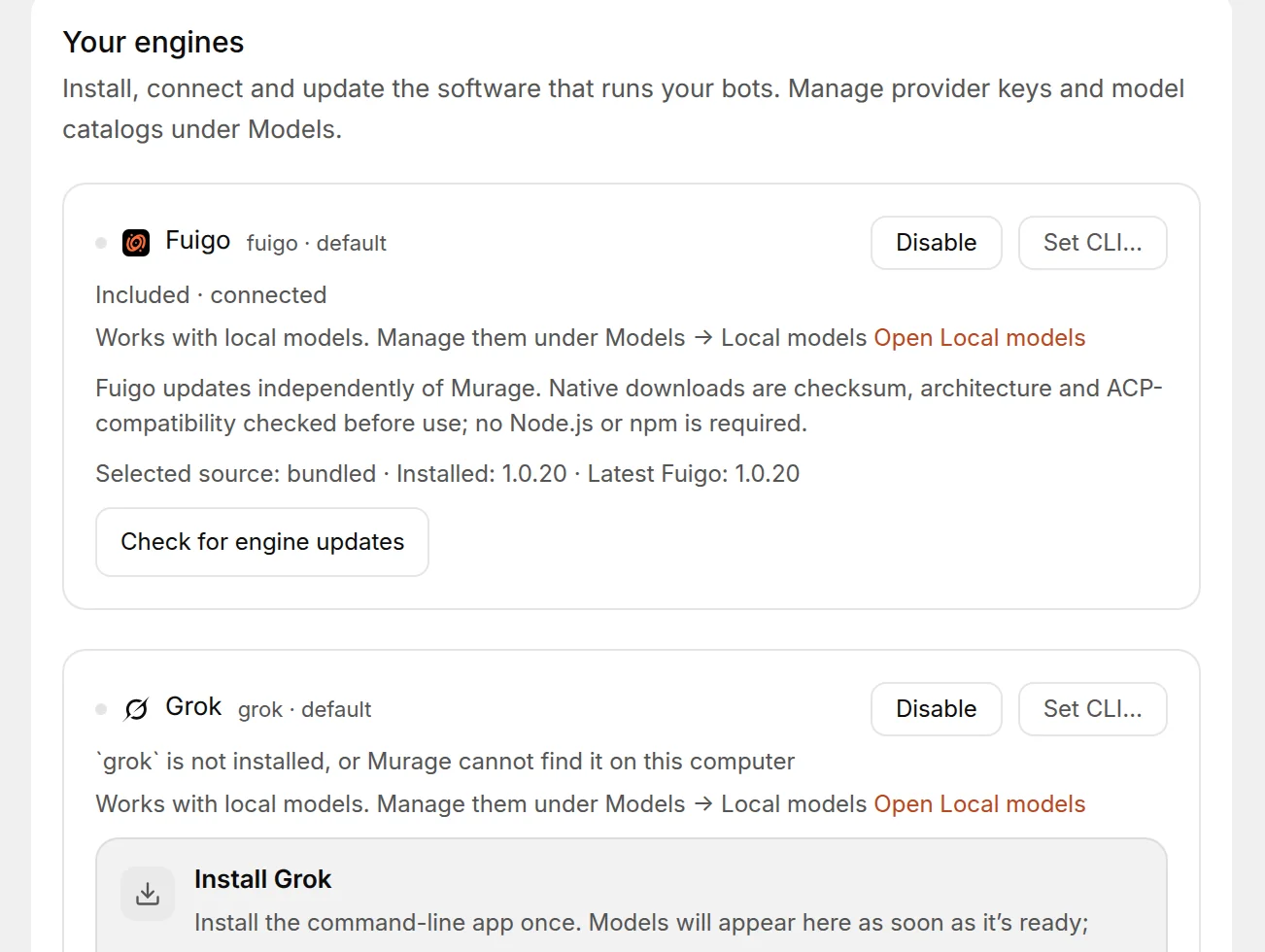
You're done when: you can see the engine's row and the line under its name.
Step 2
Open Terminal with the install line copied
Under Grok's status line is a card called Install Grok. It shows the line that will be pasted, so you can read it first. Choose Open install in Terminal.
The button changes to Opening Terminal… and then Terminal opened. Under it Murage says: "Paste the command and press Enter. Finish or cancel in Terminal, then check again below." The install line is now on your clipboard.
Grok's card is not the same on Mac, Windows and Linux: on Mac and Linux it has its own one-line installer, and on Windows it says "There isn't a one-line installer for this platform. Use the setup guide below." and offers View setup guide instead, which takes you to the maker's own install page.
You're done when: the button reads Terminal opened and a Terminal window is on your screen.
Step 3
Paste the line and press Enter
Click inside the Terminal window so it is the active one. The paste shortcut is the one thing that differs on Mac, Windows and Linux: Cmd V on a Mac, Ctrl V on Windows, Ctrl Shift V on Linux. The line appears after the cursor. Press Enter.
Text scrolls past for anywhere from a few seconds to a couple of minutes. That is the download. Do not close the window while it moves. It is finished when the scrolling stops and you get a new empty line with the cursor on it. If the last lines include the word "error", keep the window open and read the three fixes further down this page.
You're done when: Terminal has stopped printing and shows a fresh line with the cursor blinking.
Step 4
Sign in, if the engine asks
Back in Murage, the card may now read Sign in to Grok with the status Detected · sign-in required. Choose Open sign-in in Terminal. As before, Terminal opens and the sign-in line is on your clipboard. Paste it and press Enter.
The rest is the engine's own sign-in, not Murage's. Grok's line is grok login. It either opens a page in your web browser or prints a short code and a web address for you to open. Follow what it says and sign in with the account you already have. Your password goes to the engine's maker, never to Murage. Murage shows a reminder under the card the whole time: "Finish the account sign-in in Terminal, then check again below."
You're done when: Terminal says you are logged in, or the engine shows your account name.
Step 5
Check again
Back in Murage, choose Check again. The button reads Checking engine… for a moment. Murage also checks on its own each time you click back into its window, so the status may already have changed.
Three messages are possible under the button. "Claude is installed. Select a model to test it with a task." means the install worked, and the version it found sits in brackets after the word installed. "Engine detected. Finish sign-in, then check again." means the program is there but step 4 is not done yet. "Engine detected. Select a model to test it with a task." means everything is in place.
You're done when: the status line reads Detected · signed in. Open Bot settingsModel on any bot, pick the engine, and give it one small job.
When it does not work
These are the three things we see most often. Each one has a line Murage or Terminal shows, so match the wording.
You see
Could not open Terminal. Copy the command and run it in your terminal, or try again.Do this
Murage could not bring up a Terminal window, which happens on some locked-down work computers. Choose Copy command, or the small Copy next to the line, and open Terminal yourself, which is a little different on Mac, Windows and Linux. On a Mac press Cmd Space, type Terminal and press Enter. On Windows open the Start menu, type Terminal (or PowerShell if nothing appears) and press Enter. On Linux look for Terminal in your applications menu. Then paste the line and press Enter, exactly as in step 3.
You see
Claude is still not detected after the install.Do this
Murage looked and did not find the program. Check Terminal's last lines first.
If Terminal finished without complaint, quit Murage fully and open it again, because a desktop app only sees programs that were there when it started. Then choose Check again. If it still says not detected, open Advanced at the bottom of SettingsModels & engines, find Engine command lines and choose Set CLI…, which lets you point Murage at the program yourself.
You see
Engine detected. Finish sign-in, then check again.Do this
The install worked. The sign-in did not finish. Look at the Terminal window: it is usually waiting for you to open a web address, type a code, or press Enter one more time. Finish that, come back and choose Check again. If you closed the window, do step 4 again. If you have more than one Claude account in Murage, use that account's own line from Sign-in instructions for it rather than this card, so the sign-in lands in the right place.