Build a team with a team lead
Create a team from a template, from your own bots, or by asking your Chief of Staff, and give it a lead.
A team is a group of bots under one heading in the sidebar. A team lead takes work from your Chief of Staff and hands it to the right specialist. There are three ways to build one.
Option A: start from a template
Murage comes with 68 ready-made teams, from outreach to support to research.
- Choose + in the sidebar, then New Team.
- Under What should it do?, describe the job in a sentence, for example "Reply to customer messages in my voice".
- Pick one of the Best matches. The preview shows its bots, how many skills it comes with, any routines and any apps it needs.
- Choose Create.
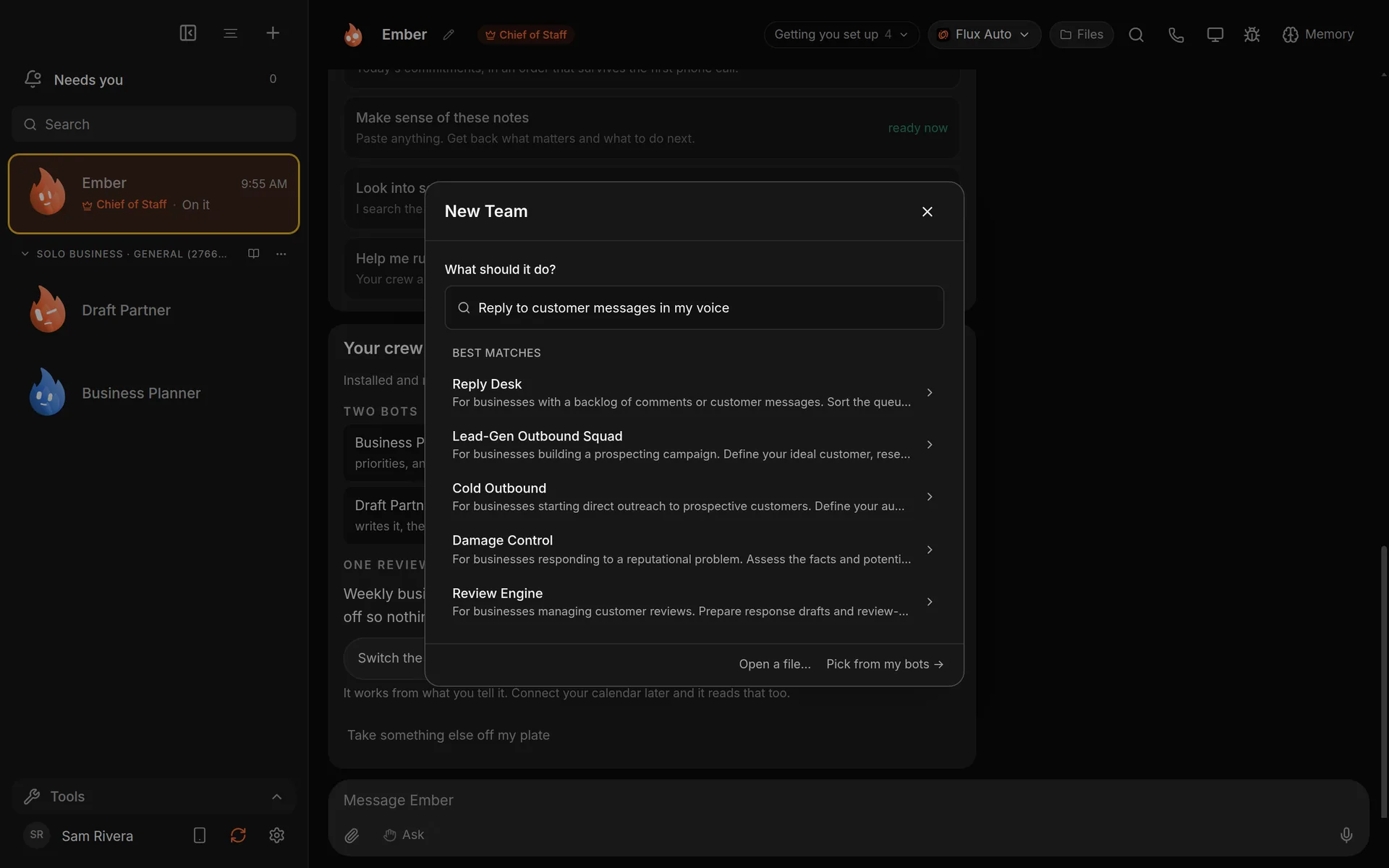
Describe the job and matching team templates come up. Demo workspace. Your Chief of Staff starts as Ember; you can rename it.
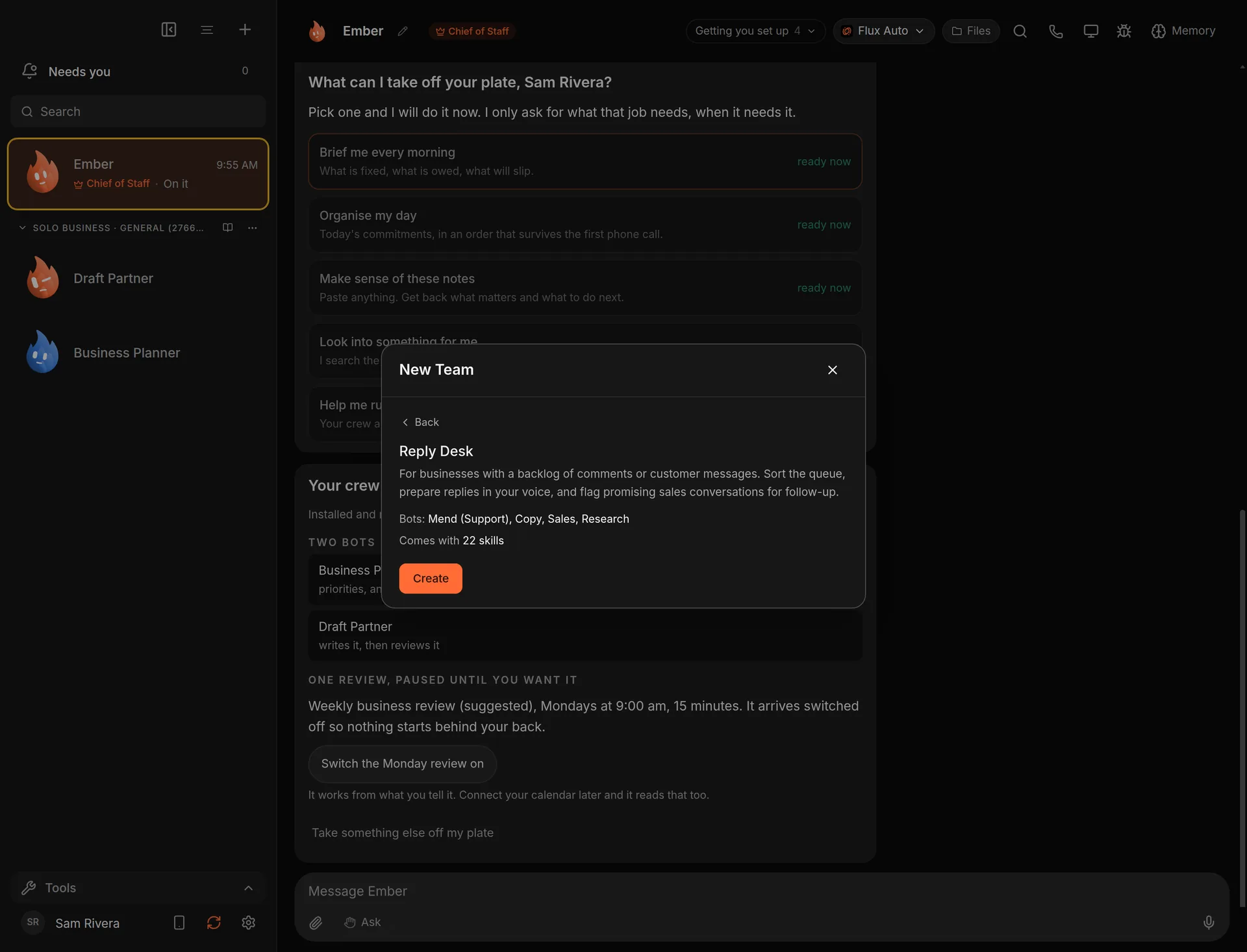
The preview before you create it. Routines in a template arrive switched off.
Option B: pick from your own bots
- Choose +, then New Team, then Pick from my bots.
- Enter a Team name, such as Operations.
- Tick the Bots in this team.
- Under Team lead (optional), pick the lead.
- Under Team instructions (optional), write what every bot on the team should know.
- Create the team.
To move a bot into a team later, open its menu in the sidebar and choose Move to team….
Option C: ask your Chief of Staff
Tell your Chief what the team is for and ask to see the plan first:
Build me a small content team: a lead, a writer and an editor.
Show me who you'd put on it before you create anyone.
Your Chief proposes the bots and their roles. When you say go, it creates them and hands out the work. Bots your Chief creates start with no connected apps, computer or browser. You add those in each bot's settings.
How the lead works
Your Chief of Staff hands a team's work to its lead instead of going around it. The lead gives each part to the right specialist and brings the results back. A bot's role shows as a badge: Chief of Staff, Team lead, or none for a team member.
To edit the team instructions later, choose the book icon next to the team's name in the sidebar.
What you get
A named team in your sidebar, a lead who coordinates it, and shared instructions every member reads. Ask your Chief for something in the team's area and it goes to the lead.
Open Team map from the sidebar to see your Chief, your team leads and their specialists in one picture. See Teams and team leads.