Export your data and move computers
Save a conversation as Markdown, take everything with a backup, what Export bots does and does not include, usage figures, moving Murage to a new computer, and several people on one computer.
Save one conversation
Step 1
Open the chat list
Open the conversation you want to keep, then open the chat list at the top of it.
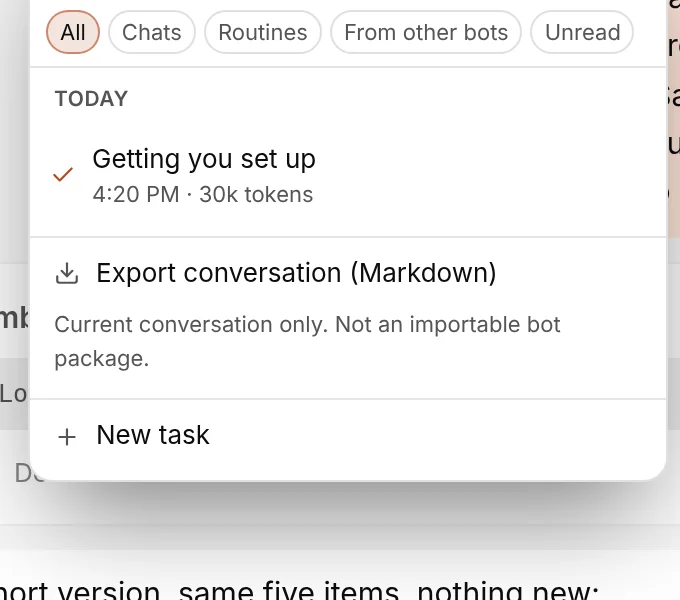
You're done when: the list of this bot's conversations is open.
Step 2
Export it
Choose Export conversation (Markdown) and pick where to save it. The note under the button says it plainly: current conversation only, and not an importable bot package.
You're done when: you have a .md file you can open in any text editor.
There is no single button that exports every chat as readable text. For everything at once, use a backup. For a tidy summary of a project, ask a bot to write it into a file and save it to Files in the sidebar.
Take everything: a backup
A backup is an encrypted copy of your settings, bots, conversations, files, memory and channel history, locked with your recovery key. It is the only full copy of your data Murage makes, and it is readable only by a Murage that has the key. Set it up in SettingsBackups; see Backups and export.
Engine sessions, sign-ins to messaging apps, the Local VM home folder and folders outside Murage are not in it. Keep files that live elsewhere in your own backup.
What Export bots is for
+ in the sidebar, then Export bots…, makes a file for sharing bots with someone else. It holds their instructions, skills and routines. It never includes conversations, memory, keys, passwords or connected accounts. Use it to give a colleague the same team, not to move your own data.
Usage figures
SettingsUsage has an Export button that saves the month's usage figures as a file.
Move Murage to a new computer
Step 1
Back up on the old computer
Open SettingsBackups and choose Back up now. Choose Save a copy… for your recovery key and put the copy on a USB drive or in your password manager. If you use an off-site copy, keep the off-site password too.
You're done when: Settings > Backups shows a verified backup.
Step 2
Install Murage on the new one
Install from the download page. Murage is the same app on Mac, Windows and Linux, so you can move between them.
You're done when: Murage opens and Ember says hello.
Step 3
Restore
Open SettingsBackups, choose Restore… and pick the backup file and your recovery key. From off-site storage, add the same destination first, choose Choose a password file I already have, then Find off-site backups and Download verified copy. Then sign in to your engines and messaging apps again and review memory.
You're done when: your bots and conversations are back, with memory paused for your review.
You see
This data folder was last used on another computer, but I only renamed my computerDo this
Renaming a computer and moving to a new one are fixed in different ways. Choose Open diagnostics folder in the recovery window and contact support with the two computer names it shows. Do not send your conversations, keys or the whole data folder.
Several people on one computer
Each operating system account gets its own .murage folder in its own home folder, and Murage makes that folder readable only by that account. On Windows the installer is for the current user only, so each person installs Murage themselves. Murage assumes the person logged in is the owner. On a shared machine other administrators may still be able to read app data, so give each person their own account rather than one shared login.
Where each file lives is on Data locations. What leaves your computer and what does not is on Privacy and usage analytics.