Permissions and the stop line
The four approval levels, what each approval button does, and the stop line: what it covers on each engine.
Every conversation runs at an approval level. It decides how often a bot stops to ask you. On every level except No limits, a few actions stop at the stop line and wait for you.
The four levels
- Ask: the bot asks before any action that needs your permission. New bots start here.
- Auto: the bot keeps going on its own. Destructive and sensitive actions still ask.
- Full access: the bot keeps going without asking, but it stops at the stop line and before reading your keys and passwords.
- No limits: the bot does anything without asking, except reading your keys and passwords. The stop line is off.
Full access and No limits can only be turned on in the desktop app, not from your phone. The first time you choose either one for a bot, you confirm a warning.
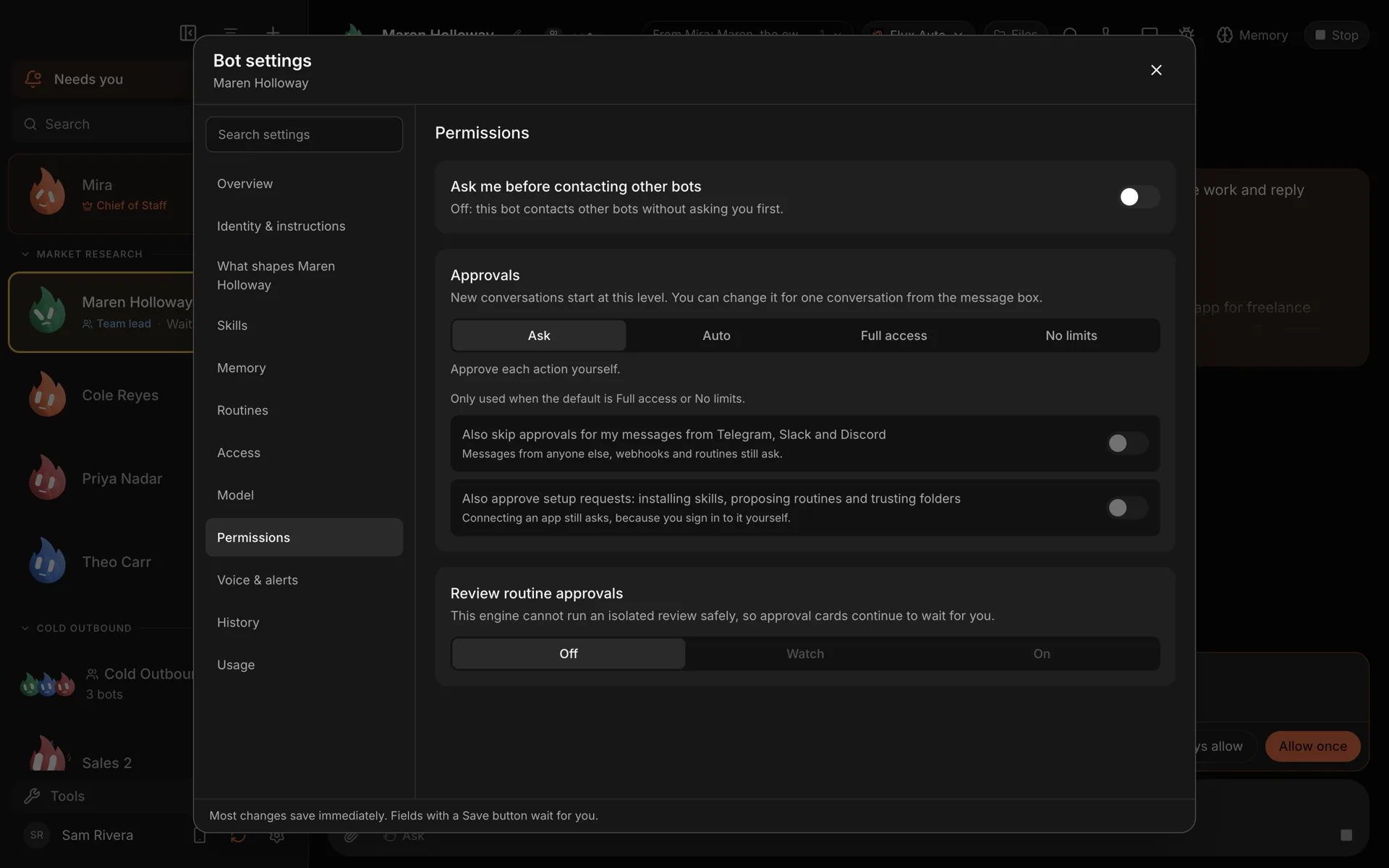
Bot settings → Permissions. New conversations start at the level you pick here. Demo workspace. Your Chief of Staff starts as Ember; you can rename it.
Where to set it
- For one conversation: the approval chip under the message box.
- As the bot's default: Bot settings → Permissions → Approvals. New conversations start at this level.
The stop line
On Full access, a bot stops before messaging anyone new, posting publicly, paying, or deleting outside its folder, unless you have allowed it for that task. The stop line is checked on every permission in Ask, Auto and Full access. Only No limits turns it off, and No limits is desktop only.
Some things are never "new": messages to you, to your own linked accounts, and to the person a channel conversation is with. Replies to people the bot has already written to aren't new either.
The stop line is a careful check on each action, not a sandbox. Keep a bot on Ask for anything where a mistake would really hurt.
What it covers on each engine
The stop line judges the permission requests that reach Murage, so what it covers depends on the bot's engine.
- Claude Code and Codex: the stop line also covers tools from MCP servers you add.
- Hermes and other ACP engines: it covers only what the engine asks Murage about. Hermes asks before shell commands and file edits, but not before MCP or connected-app tools.
When a task is already allowed
"Allowed for that task" can come from you in two ways: you choose Allow for this task on a card, or your own message names the person. When your message names a recipient, a bot can record that allowance itself, and messages to that person go ahead for the rest of that task.
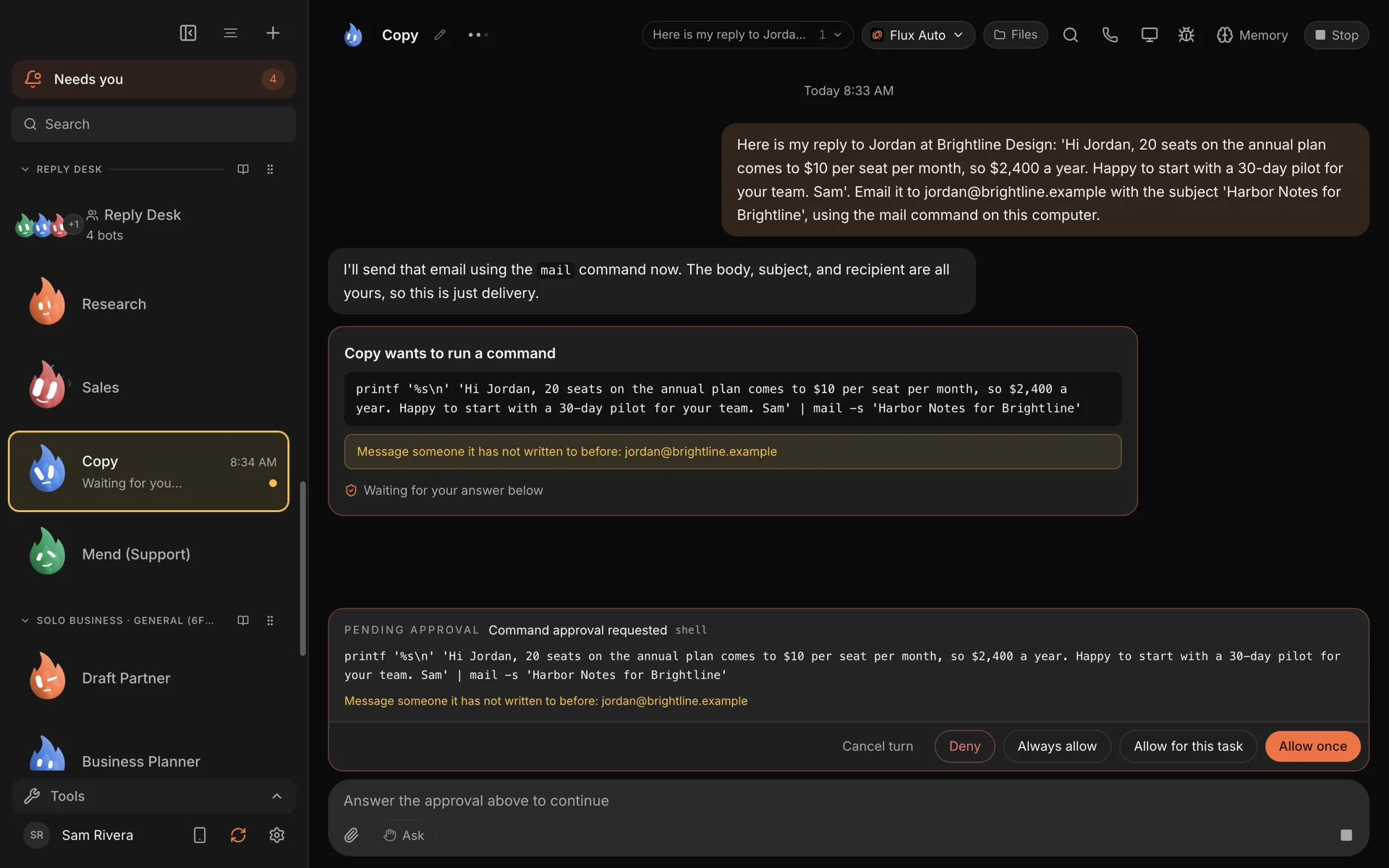
A send to someone new stops, even though the bot was told to send it.
The approval buttons
When a bot asks, a card appears in the chat with these choices:
- Allow once: this action, this time.
- Allow for this task: the same kind of action in the same place until this task ends. Offered on stop-line cards.
- Always allow: don't ask again for this. On a stop-line card it's tied to that folder, recipient or payee, never to the tool as a whole. For a command it names the program, such as "Always allow any git command". On an ordinary connected-app card it covers the whole tool, so use it with care.
- Always allow this exact command here: offered on command cards. The narrowest remembered yes: that exact command, in that folder, on that engine. Any other command, folder or engine still asks.
- Always allow for this routine: offered on cards a routine raises. It covers that command or place for that routine only.
- Deny: no. The bot is told and can try another way.
- Cancel turn: stop what the bot is doing.
You can also answer from the Inbox, the menu bar or Telegram.
What still asks, whatever the level
- A turn started by a webhook or someone other than you is judged as Auto, because nobody is watching it live. Turns started outside the desktop (a webhook or a chat app) also skip your Always allow grants, so those actions wait for your approval. Only your own desktop app and paired devices can answer a card; a message whose sender Murage can't confirm runs as an unattended turn.
- A routine runs at its own level. One you haven't set follows the bot's level. See Routines and webhooks.
- Making pictures asks before it spends, even on Full access.
- A bot on Auto asks once before it first uses your screen.
- Questions a bot asks you still reach you.
Extra options for Full access
In Bot settings → Permissions, two switches apply only when the default is Full access or No limits:
- Also skip approvals for my messages from Telegram, Slack and Discord. Messages from anyone else and webhooks still ask.
- Also approve setup requests: installing skills, proposing routines and trusting folders. Connecting an app still asks, because you sign in to it yourself.
Under Full access, the steps a bot takes without asking fold into one "Approved N steps" line in the chat, so you can still see what it did.
The Always allowed list
Every Always allow a bot remembers is listed in Bot settings → Permissions → Always allowed. Exact-command grants show the command, the folder and the engine. Choose Remove next to any of them to take it back. The list is desktop only.