Add an MCP server with a token instead of a sign-in
Where a token goes when an MCP server has no sign-in page: the API key field, the Sent as choice, the Environment line for a command, what success looks like and the three most common failures.
Say a course gave you a server address and a token. That is the example this page follows; a work tool that hands you an API key is the same job.
What a token is
A token is a password that a program made up for you. It is long and random, which is why nobody types it, and it works on its own: whoever has it can act as you on that server, with no username and no second check. So treat it exactly like a password. Paste it into the field Murage gives you and nowhere else. Never put it in a chat message to a bot, never in a shared document, and if it ever leaks, ask whoever gave it to you for a new one. Murage hides it as you type, keeps it inside the desktop app, and never hands it to a bot: the bot gets the server's tools, not the key that opens them.
Add the server and paste the token
Step 1
Paste the link
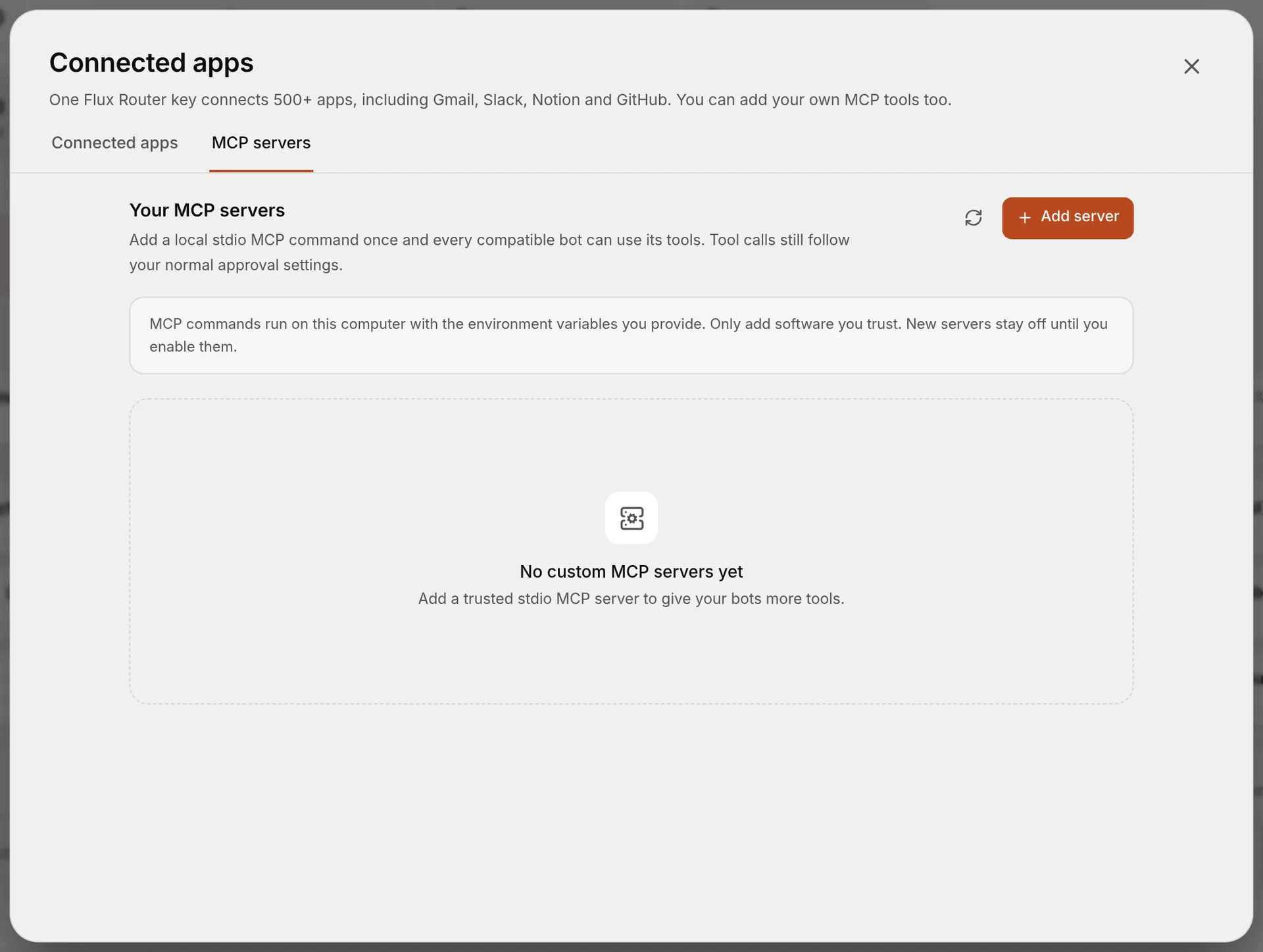
Open Connected apps in the sidebar and switch to MCP servers. Choose Add server. A box opens with the label Paste a link, a command, or a config snippet. Paste the server's address into it and choose Continue.
Murage says Looking at what you pasted…, then shows a card headed Here is what we found with a Name you can change and the words Link to a server online. At the same time it quietly tries the server, to find out what the server wants from you.
You're done when: Murage shows a card headed Here is what we found.
Step 2
Put the token in the API key field
If the server asks for a key, the card now reads This server needs an API key. and shows one field, API key, with the hint "Paste your API key". Paste the token there. It shows as dots.
Under the field is a small line, Sent as, folded shut. It is the name of the slot the server reads your key from. Most servers use the default, Authorization: Bearer, so leave it alone unless your instructions say otherwise. If they mention "X-API-Key", open Sent as and pick X-API-Key. If they name some other header, pick Another header… and type that name into Header name. Then choose Save and test.
If instead the card says the server uses sign-in, with a Sign in to button, look for the link Use an API key instead next to it. Choose that, and the same API key field appears. The link only shows when the server told Murage it also takes a key; if it is missing, see the second fix below.
If you pasted a config snippet that already had the token inside it, Murage moves it for you and says "The secret you pasted is hidden now. It is filled in below." The card lists each value under "This server needs one value from you." with the words "Paste your value" in any that are still empty. Fill them in and choose Add and test.
You're done when: you have chosen Save and test.
Step 3
Turn it on
Murage says Testing the connection… and then, when the token is right, Connected. 12 tools found. with your own count. Open See the tools if you are curious. Choose Turn on for my bots.
You're done when: the card reads Notes is on. with your server's name, and its row in the list shows On. Bots can use the tools from their next message, with no restart. A row can also say Secrets saved followed by the name of the slot, never the token itself.
A server that is a command, not a link
Some servers come as a command that runs on this computer, and those keep their token in an environment value rather than a header. Paste the command the same way. If the token was typed into the command itself, Murage stops you: "This command has a secret in its arguments, where it would be saved as plain text. Move it to an environment value?" Choose Move to an environment value and the token gets a hidden field of its own.
To add or change one later, choose the pencil on the server's row to open Edit, find Environment · KEY=value per line, and write one line such as NOTES_TOKEN= followed by the token with no spaces. Choose Save, then Test on the row. Leaving an existing value blank keeps what is saved.
When it does not work
You see
did not accept this API key. Check it and try again.Do this
The card starts with the server's name. The server read the key and said no. Copy the token again from where you got it, the whole thing, with nothing before or after it; a trailing space or a missing last character is the usual cause. Then open Sent as and check it matches your instructions: "Bearer" means Authorization: Bearer, "X-API-Key" means that choice, and any other name goes under Another header…. Choose Save and test again. If it still says no, the token has probably been replaced; ask for a fresh one.
You see
does not let apps sign in this way. Use an API key instead.Do this
The card starts with the server's address, and no browser opens. That is expected: Murage checks the server before it opens a browser, and this server did not give it a sign-in it could finish. Your computer is fine. The server has to mention an API key before the key field appears, so if you see no Use an API key instead link, take this route.
First remove the row Murage saved, which reads Needs sign-in: choose the bin icon on its row, then Remove. Next, ask whoever runs the server whether it takes a fixed token, and which header it goes in. Then choose Add server and paste a config snippet rather than the bare link, with the address under url, the header under headers, and your token in place of YOUR_TOKEN:
{
  "mcpServers": {
    "notes": {
      "url": "https://example.com/mcp",
      "headers": { "Authorization": "Bearer YOUR_TOKEN" }
    }
  }
}
Choose Continue, then Add and test. Murage hides the token as soon as it reads it. If the card then says the key was not accepted, this server does not take a fixed token, so ask its owner how it expects apps to connect.
If the sign-in page opened but nothing happened afterwards, choose Cancel on the card, then Sign in on the server's row to try once more.
You see
Nothing at this address answers as an MCP server. Check that you copied the whole link.Do this
The address reached something, but not an MCP server. Compare the link with the one you were given, character for character; the end of a long link is often cut off in an email. It must start with https://, because Murage only connects to servers on the internet over https. If the instructions gave you a page to read rather than a server address, the server link is usually on that page under "MCP" or "connect".