Draft-only bots and keeping a bot off the web
Library bots that only ever write drafts for you to send, such as Ticket Triage, how to brief any other bot to leave drafts, and the switches that keep a bot off the web.
Draft-only library bots
A draft-only bot prepares replies for you to review and send. Ticket Triage is one: its bot, Sorrel, sorts your helpdesk queue and drafts every reply. It reads Zendesk, Intercom or Help Scout when they are connected, or the tickets you paste, and ranks them by urgency. It cannot send, post, close or change a ticket.
Draft-only is set when the packaged bot is installed, and the bot's settings say so in its own words: "This bot drafts replies for you to send, so it stays at Ask and works without the browser or a computer." Its routines run at Ask, it hands work only to teammates that draft too, and a reply it writes for a messaging channel is held in Murage for you rather than posted. There is no switch to make an existing bot draft-only; if you want that guarantee, install a draft-only package.
Step 1
Find Ticket Triage
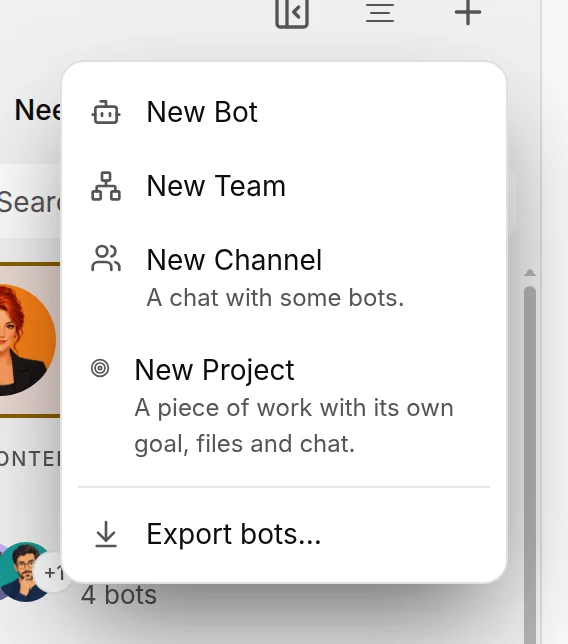
Choose + at the top of the sidebar, then New Bot. Under What should it do?, type "sort my support tickets". Ticket Triage comes up in the best matches.
You're done when: the preview shows Sorrel and what the package brings.
Step 2
Create it and pick its engine
Choose Create. A draft-only bot drafts on the Claude engine or a connected chat model. If its engine does not qualify, the bot tells you: "Choose one of those in this bot's settings and it picks up from here." Set it under Bot settingsModel.
You're done when: Sorrel appears in the sidebar and replies to a pasted ticket with a draft.
For a whole support team rather than one triage bot, the library has Support Stack. See Team packages.
Any other bot: drafts, not sends
For a bot that is not packaged draft-only, two settings do most of the work. Keep it at Ask under Bot settingsPermissionsApprovals, so anything that sends or changes something stops at a card. Then put the rule in writing, in the bot's instructions or in House Rules: "drafts, not sends". A bot reads its House Rules on every turn, so the rule holds across conversations. Sending an email or a message to someone new is behind the stop line anyway, whatever the level; see Permissions and the stop line.
One caution from the approvals playbook: don't use Always allow on an email app's send tool, because it covers the whole tool, not one message.
Keep a bot off the web
- Browser. Bots start with the built-in browser off. Leave it off under Bot settingsAccess.
- Web search. Open SettingsWeb search and set Web search provider to Off. This turns off Murage's own search for every bot.
- Approval level. At Ask, web and network requests ask first, so you see each one.
- Chrome extension. If a bot uses your Chrome, set a site to Never in the extension. See Use my Chrome.
Starting points for each kind of team, including the inbox team that drafts but never sends, are on the Approvals playbook.