Gemini, Cline and other engines
Where Gemini fits in Murage today: Gemini models through a Google key on Fuigo, Antigravity for a Google sign-in, and the Gemini CLI driver for enterprise accounts. Plus Cline.
Gemini, Gemma and Antigravity are trademarks of their owner. Murage isn't affiliated with Google.
Gemini models through a Google key
Paste a Google AI key and Murage lists its Gemini and Gemma chat models for any bot on Fuigo. Your Google account bills you directly.
Step 1
Add the key
Open SettingsModels, choose Add connection and paste your Google key. Google is one of the key providers Murage knows, so it files the key where it belongs.
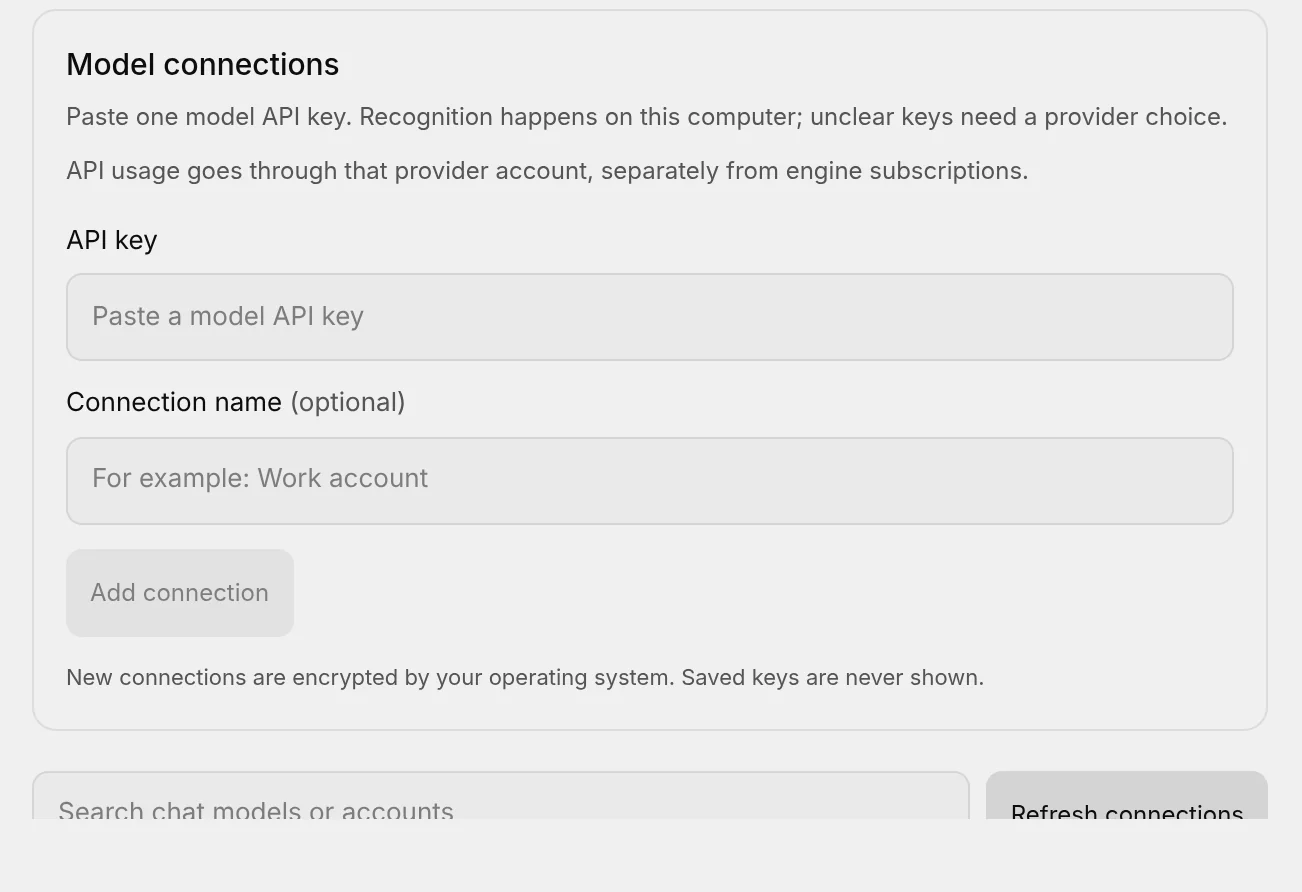
You're done when: Murage checks the key and loads the model list.
Step 2
Pick a Gemini model for a bot
Open Bot settingsModel, set the Engine to Fuigo and pick a Gemini model from your Google connection.
You're done when: the bot shows Fuigo and a Gemini model.
On Fuigo the bot gets every Murage tool, so the same Gemini model that only chats elsewhere can read your Gmail through connected apps, drive the built-in browser, use a computer, call your own MCP servers and hand work to other bots. Take this route unless you have a reason not to.
Gemini with a Google sign-in: Antigravity
If you would rather sign in with Google than paste a key, use Antigravity. It runs Gemini models through Google's own command-line agent. Antigravity cannot pause to ask you before an action, so read that page's limits first.
The Gemini CLI driver
Murage has a driver for Google's Gemini CLI, and it is not in the default engine list on purpose. Google stopped serving Gemini CLI requests for its consumer tiers and pointed everyone at Antigravity. The driver is kept for accounts on an enterprise licence, where the CLI still reaches a model.
If that is you, add it by hand to Murage's config.json:
{ "instances": { "gemini": { "driver": "geminiAgent" } } }
Restart Murage and the engine appears in SettingsEngines. On a consumer Google account, do not bother. Use Antigravity or a key on Fuigo.
Cline
Murage runs Cline as an engine, and it is in the default list. Cline uses whatever provider you chose with cline auth, and Murage starts it so that Murage's approval levels decide what it may do. The model entry reads Cline default (from cline auth).
- Install Cline and sign in with
cline auth. - Open SettingsEngines and check that Cline reads Detected. If not, choose Check again.
- Pick Cline for a bot under Bot settingsModel.
Murage reads only the provider you selected from Cline's own settings, and only its name, model and sign-in type. The key goes to Cline alone and is never kept, logged or shown by Murage.
Cline is early in Murage. If you hit something odd, put the bot on Fuigo with the same provider key and carry on.