Files, folders and folder trust
A bot's working folder, what Trusted means and the card that asks, where files a bot makes end up and how to find them in Files, attaching files in chat, the editor's file not saved messages, and why a turn waits in line for a folder.
The working folder
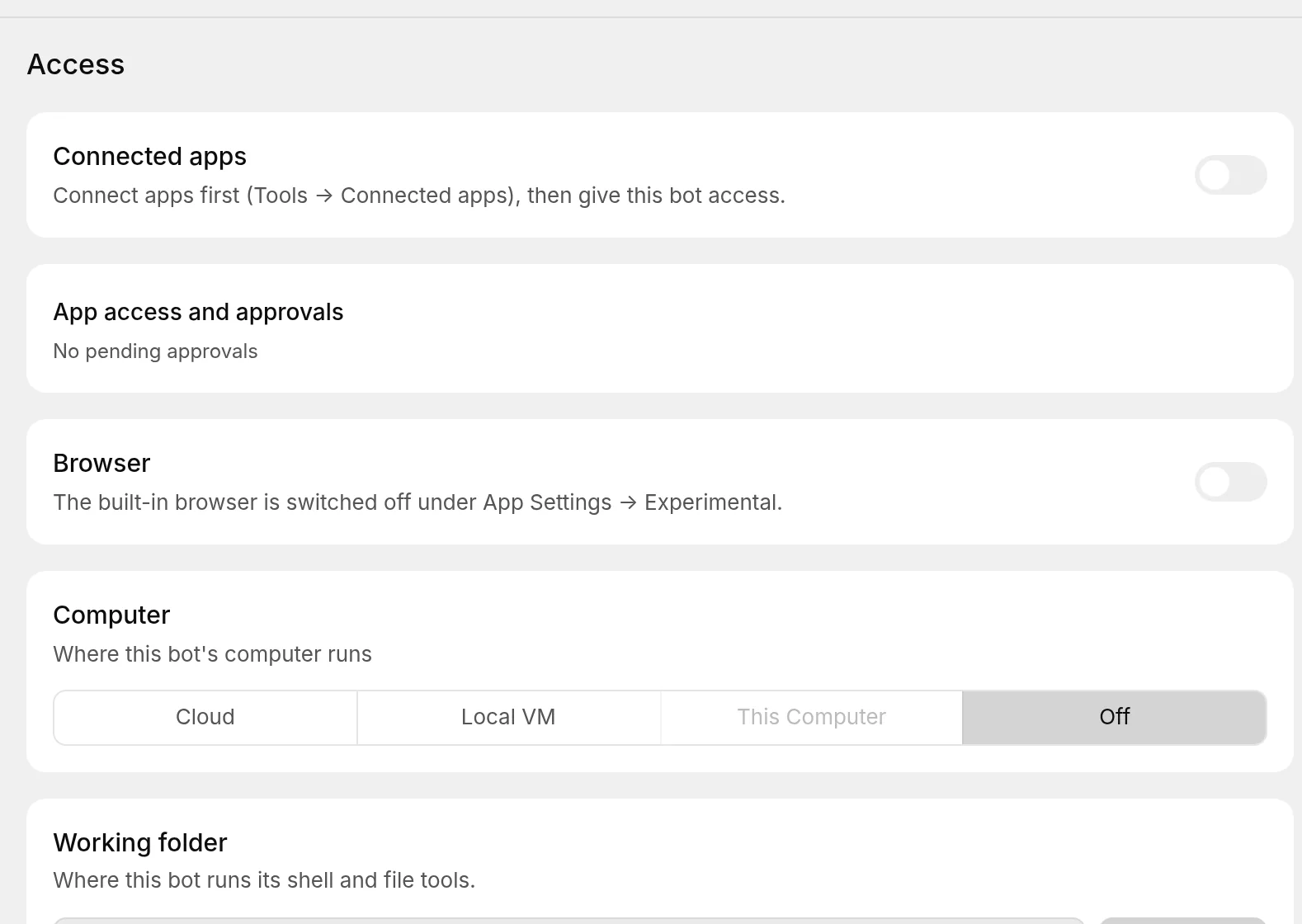
Open Bot settingsAccessWorking folder. A new bot starts with a Private bot workspace, a folder of its own inside Murage's data. Choose Choose… to point it at a folder of yours instead, such as the folder that holds a client's files. That folder becomes the bot's starting context: it runs its shell and file tools there, and it can read and work with what is inside, depending on its engine and permission level.
Give a bot your documents by putting them in its working folder, or attach them in the chat and say what to look at. An attached file is not automatically saved to memory, so if a file holds facts the bot should keep, ask it to remember them.
Folder trust
A folder you choose as the working folder is trusted. Its AGENTS.md, CLAUDE.md, .mcp.json and skills then apply to the bot's turns. A folder that is not trusted leaves those extras out, while ordinary file tools still work, so the bot can read and write files either way. The folder's status shows next to it: Trusted, Not trusted, or Not decided yet. The first turn here will ask.
You see
Ember needs a decisionDo this
For a folder Murage has not seen before, the first turn stops and asks whether to trust it. Answer the card. If you are not sure what is in the folder, say no; the bot still works, without the folder's instruction files.
You see
Nobody decided in time, so this turn was stoppedDo this
The trust card waited and nobody answered, so the turn stopped (or finished without the folder's files). Send the message again to be asked again.
You see
Why does the bot ignore my AGENTS.md or CLAUDE.md?Do this
The folder is not trusted, or the bot's engine was not told about the folder at all. Check the status next to Working folder. Not every engine uses the trust gate. One that does not shows Not gated by this bot's engine and applies the folder's files as it always did. A folder you trusted in your own Fuigo install with fuigo --trust is also trusted here.
Where files a bot makes end up
Open Files in the sidebar. It lists the files in a bot's working folder and the verified copies Murage has saved. Pick the Bot and the Task, then open a file to preview it or choose Download saved copy.
A bot saves a finished report or file there itself. Routines and project work also land there. Projects have their own Files tab for files shared by the project's bots.
You see
The bot said it saved a file but I can't find itDo this
A path the bot mentions in chat is not automatically a saved file. Choose Refresh in Files, which reloads both the working folder and the saved copies. If it is still missing, ask the bot to save the file to Files.
You see
Preview is unavailable for this format or sizeDo this
Some formats cannot be previewed. Choose Download saved copy and open it in its own app. HTML previews are protected: scripts, outside resources and app access are blocked, so a page that needs them looks plain in the preview and normal once downloaded.
Attaching files in chat
Paste a screenshot, attach an image, or drop a file into the chat and say what you want from it. A file can be up to 25 MB and an image up to 10 MB. Never attach a screenshot with a key or an account number in it to a bot on a cloud engine; crop it first, because what you attach is sent to that engine as it is.
The document editor
Files you open from Files or a project can be edited beside the chat. When a save does not go through, your changes stay on screen.
You see
File not saved: a bot is writing to this workspaceDo this
Keep the editor open. Try again when the bot finishes its turn.
You see
File not saved: the disk is fullDo this
Make room on the disk, then save again.
You see
File not saved: the file is no longer in this workspace, or it is larger than the editor can saveDo this
Copy your text somewhere else first, then find the file on disk and paste it in there.
You see
This file is not UTF-8 textDo this
The editor shows text files only. Open this one in its own app, or choose to show it in its folder.
Waiting in line for the folder
You see
Waiting for another thread to finish using the computer, browser or working folderDo this
Only one turn can use a bot's working folder, computer or browser profile at a time. A later turn waits in line and starts by itself when the turns ahead finish; the message tells you its place in the line. Nothing needs changing in your settings. If you would rather not wait, stop the other thread.
You see
this bot is already working on three threadsDo this
A bot works on three threads at once. The fourth waits and starts when one finishes.
Where Murage keeps all of this on disk is on Data locations. Files that live on another computer a bot uses are on Computers.