"Can I let AI send emails for me?" is usually two questions at once. Can it write a good email? Mostly, yes, with some training on your tone. And can I trust it to press send? That one depends entirely on where you draw the line, and whether the software lets you draw it.
This post is about the second question. Here is how Murage handles email, and anything else a bot might send, from the cautious default to the fastest setting.
Start with drafts
The safest pattern is also the most useful one to start with. The bot reads, sorts and drafts. You send.
Connect your email once, through a Flux Router account or your own connected-apps key. You sign in to Gmail or Outlook yourself, on its own screen, and you can connect up to five labeled accounts per app, such as sales and support. Then brief the bot:
Go through my inbox. Draft replies in my voice and leave them as
drafts. Send nothing. Flag anything about pricing or a complaint.
You open your inbox to drafts instead of a pile. We wrote the full setup in clear your inbox before you sit down.
For many businesses, drafts are where it stays. That is a perfectly good answer to "can AI send my emails": it writes them, and you press the button.
The four approval levels
When you want a bot to do more, you raise its approval level. Every conversation runs at one of four:
- Ask. The bot asks before any action that needs your permission. New bots start here.
- Auto. The bot keeps going on its own. Destructive and sensitive actions still ask.
- Full access. The bot keeps going without asking, but it stops at the stop line.
- No limits. The bot does anything without asking, except reading your keys and passwords. The stop line is off.
You set a bot's default in Bot settings → Permissions, and you can change it for one conversation from the chip under the message box. Full access and No limits can only be switched on at the desktop, and the first time you choose either, you confirm a warning.
The stop line
The stop line is a short list of actions that stop and wait for you, even when a bot is on Full access:
- Messaging someone new. An email or DM to a person the bot has not written to before.
- Posting publicly. A post, a comment, a public reply.
- Paying. Anything that spends money.
- Deleting outside the bot's own folder. Your files, and records in your apps.
It is checked on every permission in Ask, Auto and Full access. Only No limits turns it off. If you have allowed an action for that task, it goes ahead.
What it sees depends on the bot's engine. On Claude Code and Codex, the stop line also covers tools from MCP servers you add. On Hermes and other ACP engines, Ask and the stop line cover only what the engine asks Murage about: Hermes asks before shell commands and file edits, but not before MCP or connected-app tools.
The interesting part for email is what counts as "new". Messages to you, to your own linked accounts, and replies to people the bot has already written to are not new. So a bot on Auto or Full access can carry on a conversation it is already in, and stops the moment it tries to start one with a stranger.
That is usually the line people want. Replying to a customer who wrote in is routine. Cold-emailing someone on your behalf is a decision.
What the approval card lets you say
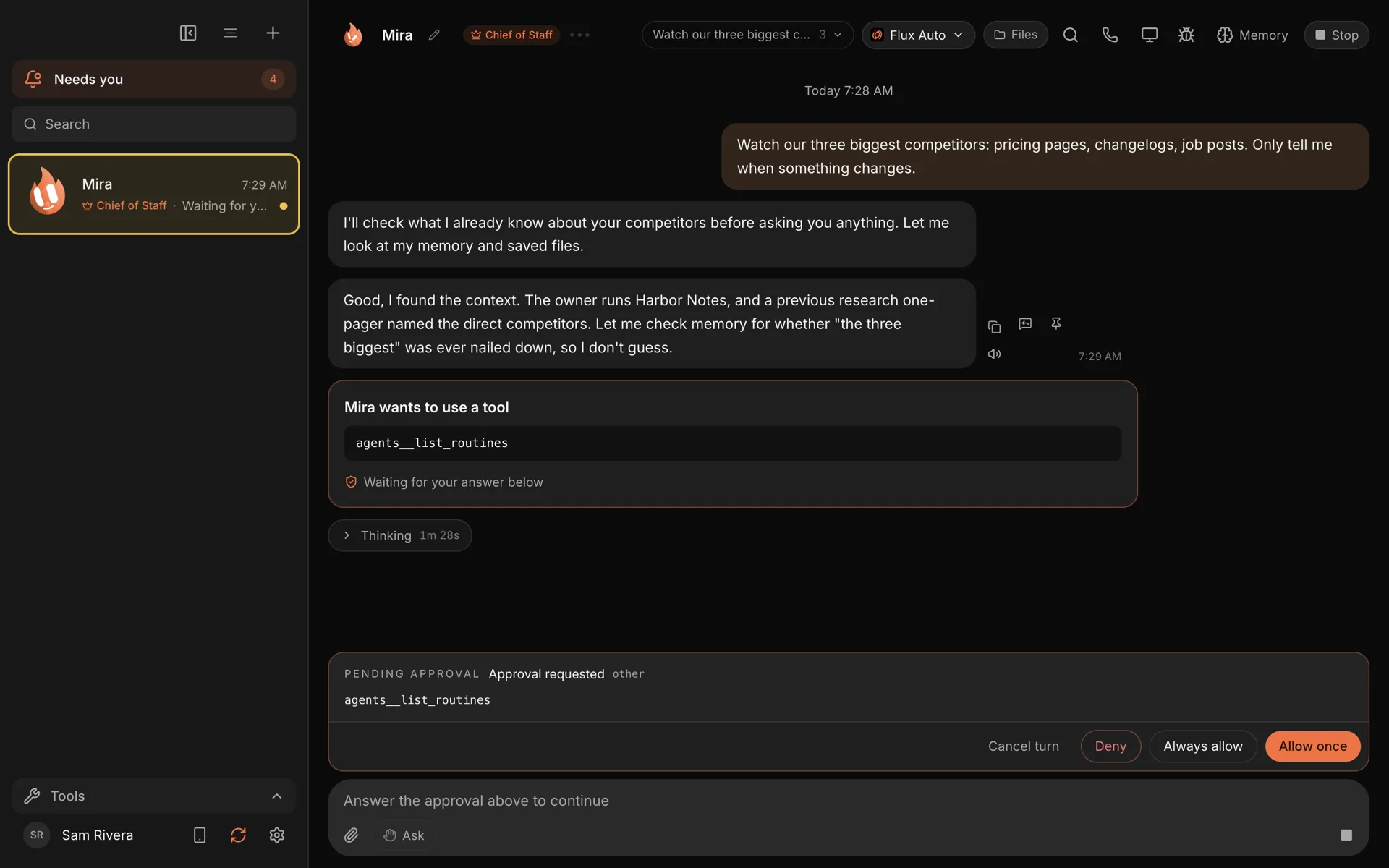
When a bot stops, you get a card with choices:
- Allow once: this email, this time.
- Allow for this task: the same kind of action, in the same place, until this task ends. Useful for a batch of follow-ups you have already agreed.
- Always allow: don't ask again. On a stop-line card, it is tied to that recipient, never to email as a whole.
- Deny: no. The bot is told and can try another way.
- Cancel turn: stop what it is doing.
So you can say "you may always email our accountant" without saying "you may email anyone".
Where you answer
You don't have to sit in one chat. Requests from every bot collect in one inbox inside Murage. Ordinary requests can be approved from the menu bar or system tray. And if you pair Telegram with your Chief of Staff, approvals come to you there with a tap: Approve once, Allow for this task or Deny. Each request expires after 10 minutes if you don't answer.
Scheduled runs are more careful
A task started by a webhook is judged as Auto, even if the bot is on Full access. Nobody is watching it live, so sensitive actions ask, and the stop line holds. A routine that runs at 7am runs at the level you give that routine. Leave it on Ask or Auto and the send waits for you. When a routine needs you, Murage tells you straight away.
A sensible path for a business
- Week one: drafts only. Bot on Ask. Read every draft. Correct its tone, and tell it why.
- Week two or three: replies on Auto. Once the drafts need little editing, move the bot to Auto for replies to existing threads. New recipients still stop.
- Specific trust. Use Always allow for the handful of people it writes to all the time.
- Full access, if ever, for one bot and one kind of job. The stop line still holds for what the engine asks Murage about.
Most businesses never need No limits for email. It exists for people who understand exactly what it removes.
What this does not promise
The stop line is a careful check on each action. It is not a sandbox, and AI still makes mistakes. A reply to an existing thread can still say the wrong thing. That is why the path above starts with drafts and moves slowly.
For staff, the same rules apply on each person's computer. Everyone approves their own bots, from their own inbox or their own Telegram.
The full detail is in approvals and the stop line and the permissions guide. The inbox use case shows the drafting side.
Download Murage, start a bot on Ask, and let it draft your first ten replies. You will know quickly how far you want to go.