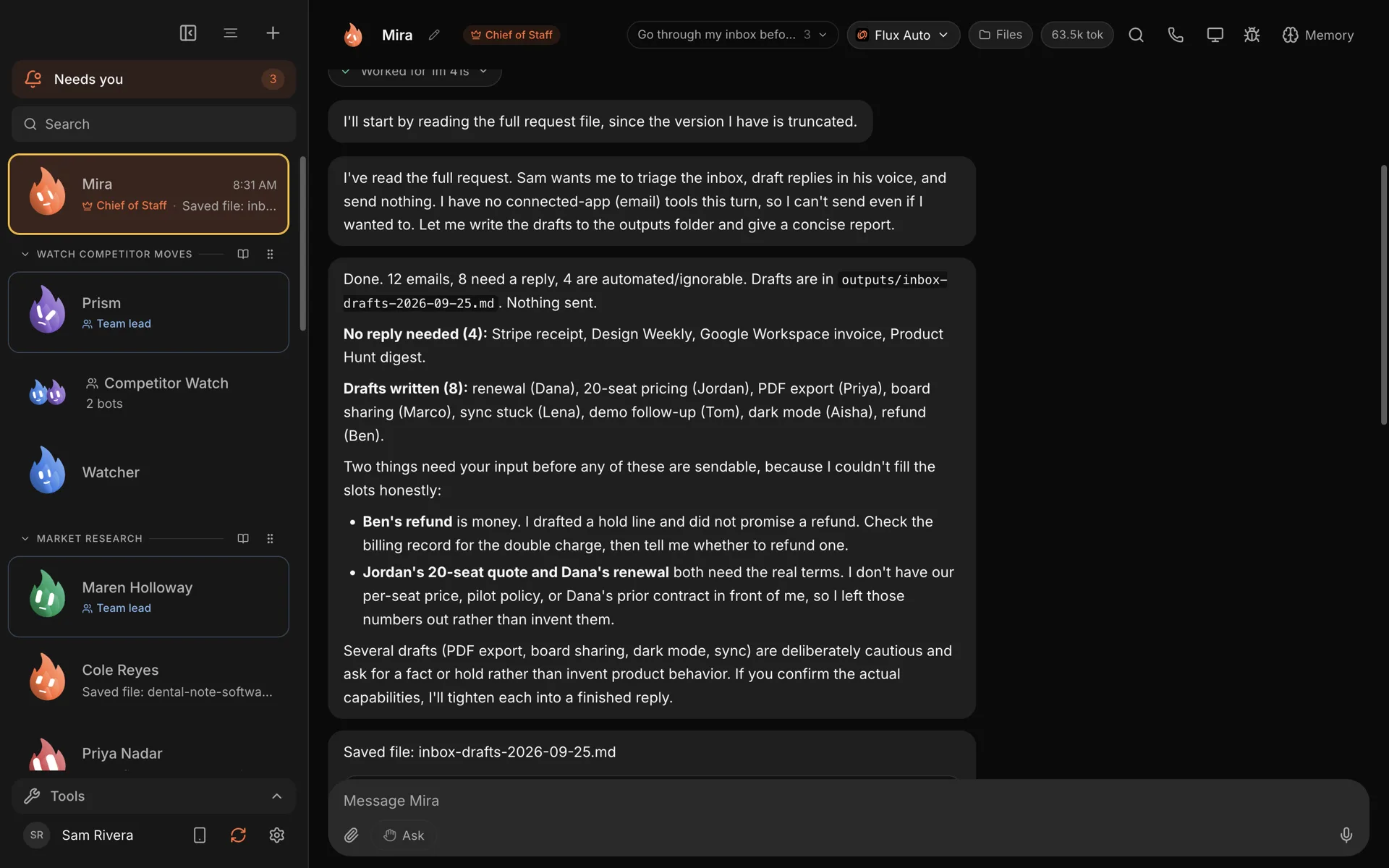
For a lot of people, the first hour of the day belongs to the inbox. Receipts, newsletters, three people asking the same question, one real customer buried in the middle. By the time it is sorted, the morning's best energy has gone into triage.
A team of bots can take this job on, as long as it is set up with care. Here is how to do it in Murage, so you open your inbox to drafts instead of a pile.
The idea
A small team reads everything that came in, sorts it, and drafts replies in your voice. It flags the few messages that need you, and sets aside the ones that do not. You read the drafts, change what you want, and decide what goes out.
The important part is the last sentence. The team drafts. You send.
What you need
- Murage and an AI engine. Your existing Claude or ChatGPT plan through Claude Code or Codex, a provider key, or Flux Router.
- Your email connected. Gmail and Outlook connect as connected apps, either through a Flux Router account or with your own connected-apps key. You sign in to each account yourself, and you can connect up to five labeled accounts per app, such as work and personal.
- Murage open while the team works. It runs on your computer.
Step 1: start from a team
You can ask your Chief of Staff to build an inbox team from scratch, but the quickest start is the Reply Desk team in the team library. Open New Team, type "sort my inbox and draft replies", and it comes up with a preview.
Reply Desk has four bots:
- Support sorts the queue and answers routine questions from your docs.
- Copy drafts replies in your voice.
- Sales spots buyers hiding in the queue and moves them to the top.
- Research works out who is likely to buy, and why now.
It comes with a set of skills for this kind of work, and declares no apps of its own, so it works with whichever email account you connect. Create it, then give the bots access to your connected email account. Bots only get the apps you give them.
Step 2: brief it once
Tell the team what a good morning looks like, in plain words. Something like:
Go through my inbox before I get in. Draft replies in my voice. Send nothing. Set aside receipts and newsletters. Put anyone asking about pricing or a demo at the top.
Then add the details that only you know. Which senders always matter. What you never reply to. The tone you use with customers compared with suppliers. Your standard answers to the questions you get every week.
Say it once and the bots save it to memory. You can open that memory later and edit it.
Step 3: put it on a schedule
Ask your Chief of Staff to run it every weekday before you start, at 7:30 for example. It proposes a routine, and nothing is scheduled until you press Confirm. Each run leaves a record, so you can see what happened.
Remember that the routine runs while your computer is on and Murage is open. If your laptop was asleep at 7:30, it runs when Murage is next open, as long as that is within 12 hours.
Step 4: read, edit, approve
When you sit down, the work is waiting:
- Newsletters and receipts set aside.
- Routine questions answered in draft.
- The messages that need a real decision flagged, with a short note on why.
Read the drafts, edit any that are not right, and approve the ones that should go. On Ask, where every bot starts, anything the team wants to do, such as sending a reply, arrives as a request you can approve or deny. The requests from every bot collect in one inbox inside Murage, so you work through them in one pass.
Teach it your voice
The first week of drafts will need editing. That is normal. What matters is what happens next.
When you change a draft, tell the bot what you changed and why. "Shorter, and never open with 'I hope you're well'." It keeps notes on your tone and on each contact, and the second week's drafts start from those notes. You can open those notes at any time and correct them.
If one kind of reply keeps going well, you can turn it into a skill. /learn is experimental, so switch it on in Settings → Experimental → Teach a skill, then type /learn after a good reply and the bot writes the steps down as a skill you can switch on.
What stays with you
Some things should not be delegated, and this setup is built around that.
- Sending waits for you. New bots start on Ask, so a reply is a draft until you approve it. If you later give a bot Auto or Full access, replies in an existing conversation go ahead, so keep an inbox bot on Ask until you trust its drafts.
- On Ask, deleting and archiving wait for you too.
- Your email stays in your email. Murage reads it through the connection you set up. There is no separate copy of your mailbox on our servers.
When this is not the right fit
If most of your email needs judgment you cannot write down, bots will draft a lot of replies you throw away. Start narrower: let the team sort and summarize first, and only draft replies for the categories you trust it with.
And if you do not want to connect your email at all, you can still get value by pasting in the threads that matter and asking for drafts.
Try it
The inbox triage use case has the full picture, and follow-ups is a good next step once your inbox is under control. Download Murage, create the Reply Desk team, and let tomorrow morning start with drafts.